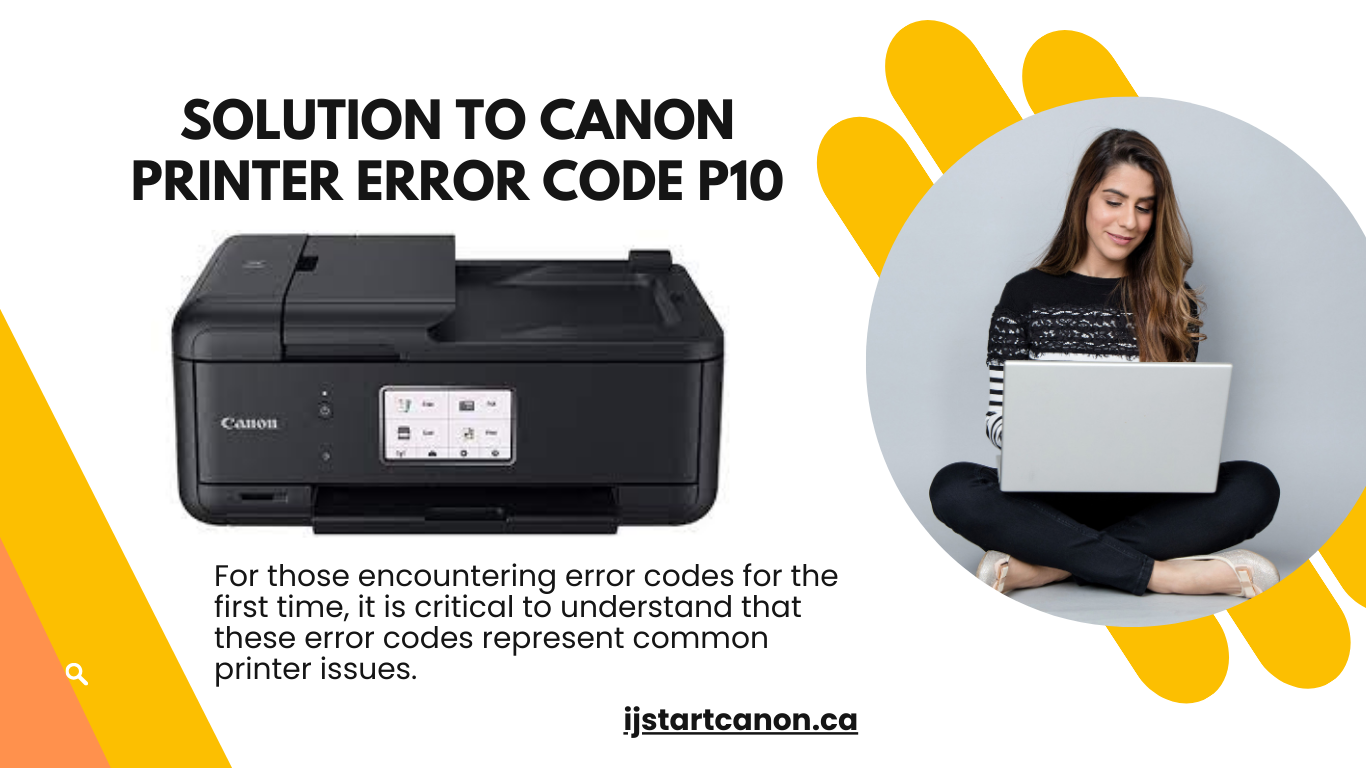
Canon printers are known for their exceptional performance and reliability. However, like any other electronic device, they may encounter errors from time to time. One such error is the Canon P10 Error. This error code indicates a mechanical malfunction within the printer, often related to the carriage mechanism. In this blog post, we will explore some effective solutions to resolve Canon Printer Error Code P10 and get your printer back up and running smoothly.
Solution 1: Restart the Printer
A simple and quick solution to many printer errors, including Error Code P10, is to restart the printer. Turn off the printer and unplug it from the power source. Wait for a few minutes, then reconnect the power cable and turn on the printer. This action can help reset the printer’s internal settings and resolve temporary glitches.
Solution 2: Check for Obstructions
Error Code P10 can occur if there are any obstructions in the printer’s carriage path. Open the printer cover and carefully inspect the inside for any foreign objects, such as bits of paper, dust, or debris. If you find any obstructions, gently remove them using tweezers or a soft cloth. Ensure that the carriage moves freely along its path.
Solution 3: Clean the Encoder Strip
The encoder strip is a transparent plastic strip located behind the carriage. It helps the printer determine the position of the carriage. If the encoder strip becomes dirty or smudged, it can cause Error Code P10. To clean the encoder strip, follow these steps:
- Turn off the printer and unplug it from the power source.
- Open the printer cover and locate the transparent strip.
- Moisten a lint-free cloth with water or isopropyl alcohol.
- Gently wipe the strip from one end to the other, removing any dirt or smudges.
- Allow the strip to dry completely.
- Close the printer cover, plug in the printer, and turn it on.
- Check if the error has been resolved.
Solution 4: Perform a Carriage Reset
Performing a carriage reset can help resolve issues with the carriage mechanism, which may be causing Error Code P10. Follow these steps:
- Turn off the printer and unplug it from the power source.
- Open the printer cover and locate the carriage.
- Gently move the carriage to the center of the printer.
- Remove the ink cartridges from the carriage.
- Close the printer cover and plug in the printer.
- Turn on the printer and wait for it to prompt for the ink cartridges.
- Reinstall the ink cartridges and check if the error persists.
Solution 5: Contact Canon Support
If the above solutions do not resolve the Error Code P10, it is recommended to contact Canon customer support for further assistance. They have a team of experts who can provide specialized guidance and help troubleshoot the issue. Visit the official Canon website and navigate to the support section to find the contact information for your region.
Conclusion
The Canon P10 Error can be frustrating, but with the solutions mentioned above, you can troubleshoot and resolve the issue effectively. Remember to restart the printer, check for obstructions, clean the encoder strip, perform a carriage reset, and reach out to Canon support if needed. By following these steps, you can get your Canon printer back to its optimal performance and resume your printing tasks without any interruptions.